Frequently Asked Questions
Main Screen
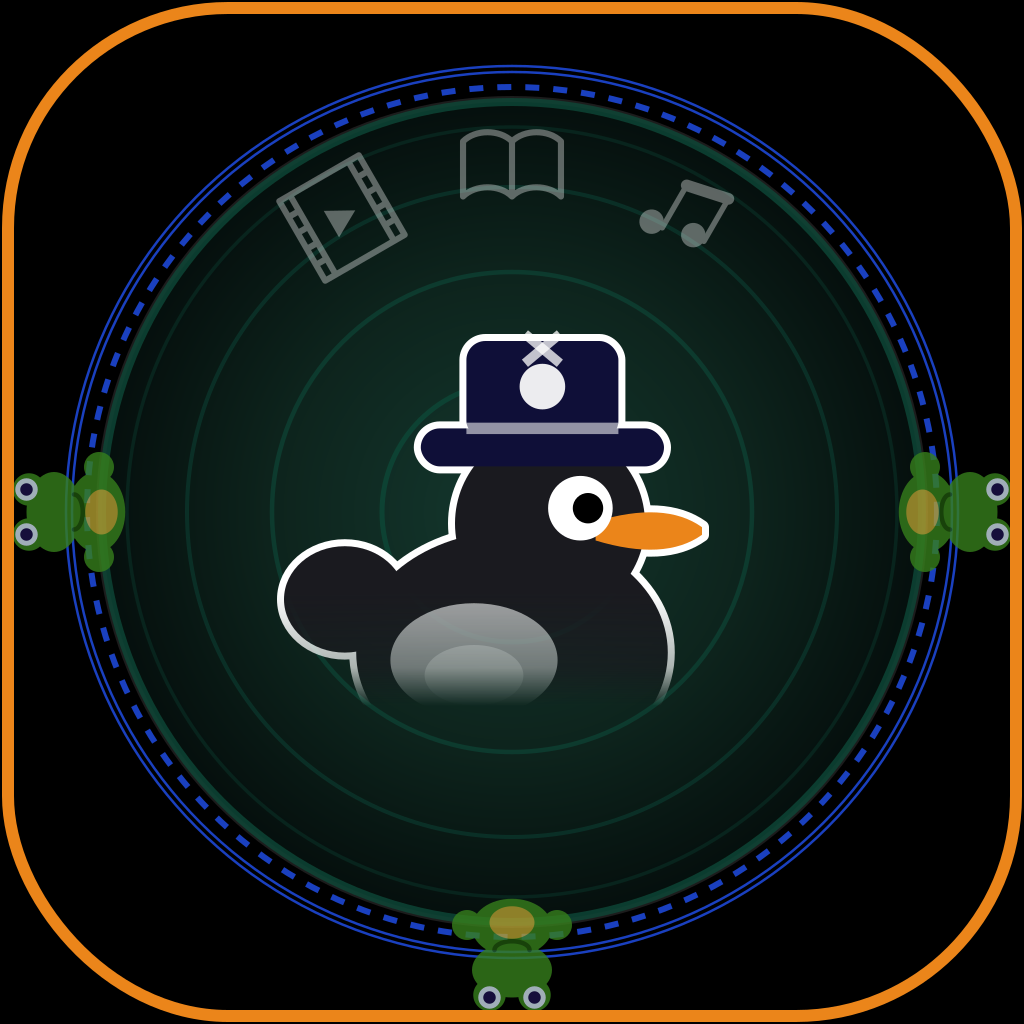
What does the pond (duck button) do? #
This is the main download button. Tap it and the app takes the link from the clipboard and starts the download. It uses the first supported link it finds, including a link inside a longer text.
If there is no supported link, an alert says No link found. Copy a link and try again.
While a download is running, tapping the pond does nothing. Links you share to Black Duck from other apps during a download are added to the queue.
If you have used up today's free downloads, a short rewarded ad plays before the download starts.
What do "In queue: N" and the status line under the pond mean? #
In queue: N is the number of links waiting to download.
While a download runs, the status line shows Downloading X of Y when several files are in one batch, or Already downloading for a single file.
What does the folder button do? #
If something was just downloaded, the button shows +1. Tapping it opens the folder with the new item. If the item came from Amazon, the Amazon tab opens instead.
If nothing new was downloaded, the button opens the history in the All tab.
What are the icons around the pond? #
Five shortcuts: Radio, Audio (LibriVox catalog), Books (Open Library), TV Channels and Podcasts. Tapping one opens that section of the library.
To hide them and keep only the pond, turn off the API buttons option in Settings > Personalize.
What do the list buttons (1, 2, 3…) do? #
When you have two or more lists, they appear as pill buttons in the top row. Tap one to switch to it. Each list has its own library. A lock icon next to the name means the list is locked with a password.
Tapping the list that is already open locks it again if it has a password.
What do the "+" and "−" buttons do? #
+ creates a new list. You can have up to five lists.
− deletes the open list. It is shown when you have two or more lists. A list that still has items is not deleted; the app tells you how many items it holds.
What does the timer button do? #
It opens the Sleep Timer menu: off, 5, 10, 15, 30, 45 or 60 minutes. The time left is shown next to the icon, in green during the last minute.
During the last 20 seconds the volume fades out. When the timer reaches zero, playback is paused.
What does the gear button do? #
It opens the app settings.
What is the "Now playing" bar? #
It appears while something is playing. It has three parts: a play/pause button; the title (tap it to open the current item); and an ✕ button that stops playback.
What does "Last Added" do? #
It opens the Last Added list in the library: the items you downloaded most recently.
What does "Last Viewed" do? #
It opens the Last Viewed list in the library: the items you opened most recently.
Why is there an ad at the bottom of the screen? #
The free version of Black Duck shows ads at the bottom of the main screen and in the library. A premium plan removes them. See the Privacy Policy for how ads work.
Library: top bar
What does ✕ in the library top bar do? #
It closes the library and returns you to the main screen. If a folder is open, ✕ closes only the folder.
What does the ⓘ button do? #
It shows statistics. On the Books tab it opens the Reading Hub: quotes, tags and statistics. On other tabs it shows the statistics for that tab. Inside a folder it shows the statistics for that folder.
What do the folder and "+" buttons do? #
On the Audio and Photos tabs, this button creates a new folder. You enter its name in the dialog that opens.
What do ▶ and ⟳ do inside an audio folder? #
▶ plays the whole folder in order, each track from the start. ⟳ turns on album repeat: after the last track the folder starts again. This is not the same as the repeat button inside the player, which repeats one track.
How does search work? #
Tap the magnifying glass. Search looks at the title, author and notes. Matching words are highlighted. To close the search field, tap ✕ in it.
Library tabs
The "All" tab (clock icon) #
This is the history: everything you opened and downloaded, in order of last use. If the history is empty, the screen says "History is empty".
The clock icon is the same as the "Last Viewed" button on the main screen.
The "Video" tab #
All downloaded videos. Tap a video to watch it; if you watched it before, playback continues from the same place.
Available actions: Subtitles; Extract audio (saves the sound as a separate file); Share; Move to folder; Delete. Press and hold to open the menu; swipe a row to delete it.
If the file is missing from the device, the app offers to restore it. Restoring does not use today's free download limit.
Subscriptions to YouTube channels are also shown in this tab.
The "Online" tab: TV and radio #
Two buttons: TV (live channels) and Radio (online stations). You can search channels and stations, filter them by country and genre, and open them on a world map.
The "Add radio or TV" button lets you add your own stream by its link. Such streams are deleted by swiping left.
The "Photos" tab #
Images you downloaded or imported. Tap a photo to open it full screen.
Available actions: Slideshow (shows the photos one by one, including a folder); Save to Photos (a copy goes to the system Photos library; allow access to Photos in the iPhone settings); Share; Delete (swipe). Create folders with the "+" button.
The "Audio" tab #
Audio files and audiobooks. An audiobook made of chapters is shown as one row with a books icon: tap it to open the chapter list.
The "Add free books from Librivox" button opens the LibriVox catalog of free audiobooks.
For chapters, available actions are: Play; Delete chapters; Delete (swipe). Create folders with the "+" button; inside a folder the ▶ and ⟳ buttons work (see above).
The "Books" tab #
The tab has two groups of folders. Shelf folders: Want to Read (books you have not bought yet) and Virtual (books you already have). Reading folders: New, Reading, Paused, Finished.
The "Add books from Open Library" button opens the Open Library catalog. The search field searches all books, including "Want to Read" and "Virtual".
How do I add a book to "Want to Read"? #
Tap "+" on the Books tab. There are several ways:
- Add by link - paste a link to the book in Apple Books, Google Books or Amazon.
- Find in libraries - search by title and author.
- Scan ISBN - point the camera at the ISBN barcode.
- Manually - enter the title, author and pages. You can add a cover: take a photo, pick one from the gallery or from downloaded photos. The "Add and OCR" button reads the text on the cover and fills in the title and author.
Before saving, the app checks whether the book is already there: "Already in your Want to Read list", "Already on your Virtual shelf" or "You already have this book downloaded".
What prices does the app show? #
The app looks for the price of a book in three sources: Apple Books, Google Books and Amazon. Amazon covers the US store only.
For each source it shows one of these states: a price; free; pre-order; "see only" (the book is in the catalog but not for sale); "not found". If there are no prices at all, it shows "Not available".
If the book was added from somewhere other than Amazon, the app searches for it on Amazon by title and author.
If a source does not find the book, you can enter the price yourself in the fields "Real price" and "Where you saw it" (for example, the store name).
What does "Check again" do? #
It checks the book's prices again in all sources and saves the result. The button is available in the Pro plan.
When do I get a price notification? #
Every day the app checks the prices of books in "Want to Read". You get a notification when a book goes on sale, or when its price drops by at least $1 (for Apple Books, Google Books and Amazon).
What are "Virtual" books? #
Books you already have: on Kindle, in Apple Books, Google Books or on your device. The "Move to Virtual shelf" button on the book card moves a book from "Want to Read" here. For each book you can say where it is: "Home", your own source or a store.
To move a book back, use "Move to Want to Read".
How does Amazon work for books? #
Amazon prices are checked for the US store only.
The book card shows Amazon as a block with prices for each format. Tapping it opens the product page on Amazon.
The "Podcasts" tab #
The button with a waveform (bottom right) opens podcast search. You can subscribe to a found podcast with Subscribe and unsubscribe with Unsubscribe.
Settings for each podcast: Auto-download; Use cellular data; Delete watched episodes automatically.
An episode row shows the time left (for example, "12 min left"). If episodes did not load, pull the list down to retry.
If an episode was deleted, its place says "Deleted:".
The "Amazon" tab #
This tab is hidden until the experimental "Amazon Tracking" mode is turned on in Settings > Personalize.
The "+" button adds a product by its Amazon link (US store only). Each product shows its price and when it was last updated. When the price changes, you get a notification.
If the product is still being checked, the app says "Amazon is busy - the item will appear shortly". The "Open in Amazon" button opens the product page. Delete a product by swiping it.
⚙ opens notification settings. If notifications are turned off for the app, tap the button on this screen to open your phone's Settings. Below it, choose which notifications you want for tracked products: Item available, Item not available, Price increased ($1+), Price decreased ($1+) and Used offer. A type you turn off is not sent to you. If you never change these settings, you get all of them.
Common gestures
Which gestures work in all lists? #
Swipe left or right gives quick actions, usually "Delete". Press and hold gives more actions: move to a folder or list, share, delete all chapters.
Press and hold a folder to rename or delete it. A folder that is not empty cannot be deleted: move or delete its files first.
Still need help? Contact us.